
The launch of Android 15 brought a feature US tech enthusiasts have been demanding for years: a native way to hide sensitive apps. But here is the cold, hard truth—if you just follow the basic prompt, your “hidden” data is likely still visible. Most users complete the Android 15 Private Space setup guide only to realize their private apps still pop up in the system search bar.
At FreakWolf, we don’t do basic. We do “Pro.” This guide will walk you through the elite setup process to ensure your private life stays off the radar, fixing the common “Search Leak” that Google conveniently forgot to mention in the release notes.
Guide at a Glance: The Privacy Roadmap
- The Feature: A sandboxed environment for sensitive apps (banking, dating, or work).
- The Trap: Private apps appearing in global search suggestions even when locked.
- The Pro-Fix: Enabling the “Hide when locked” toggle and using a dedicated Google ID.
1. Why Your Current “Hide App” Method Sucks
For years, Android users relied on “Calculator Vaults” or disabling apps entirely. These were clunky, slowed down your OS, and were easily spotted by anyone who knew what to look for.
Android 15’s Private Space is different. It’s a dedicated user profile that runs in parallel with your main one. However, the default settings are designed for convenience, not maximum stealth. If you want a true “Ghost Mode,” you need to tweak the system-level permissions that Google keeps buried in the sub-menus.
Critical Performance Note: Running a second sandboxed environment requires serious CPU overhead. If your phone feels sluggish after setup, it’s likely because of background junk. Before proceeding, ensure you optimize your Android system and clear background bloatware to keep the ISP and RAM free for encryption tasks.
2. The Master Android 15 Private Space Setup Guide
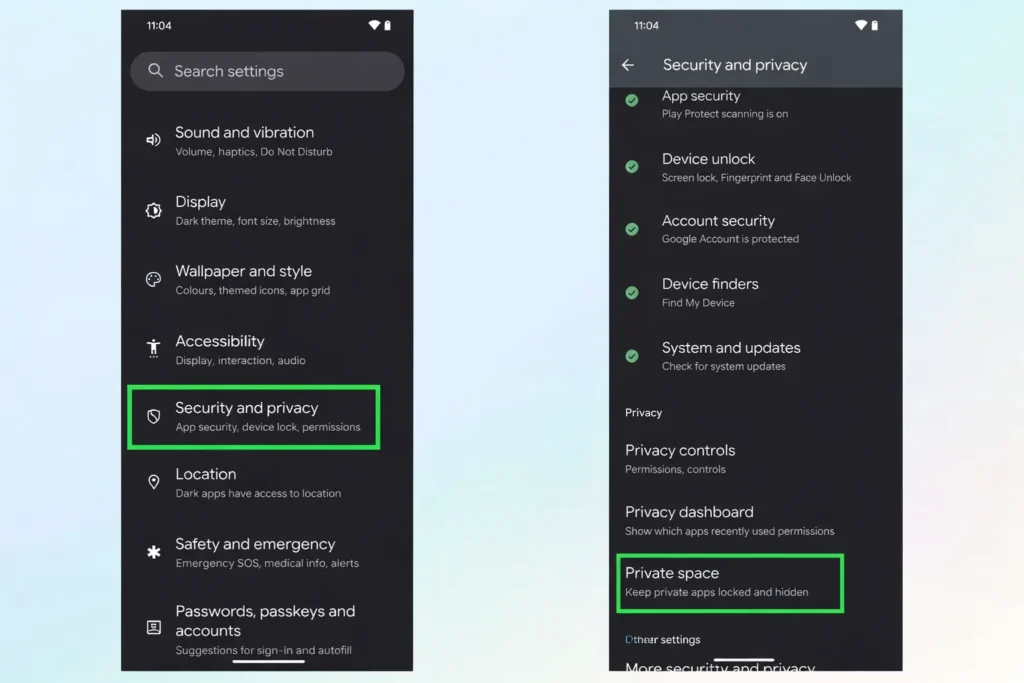
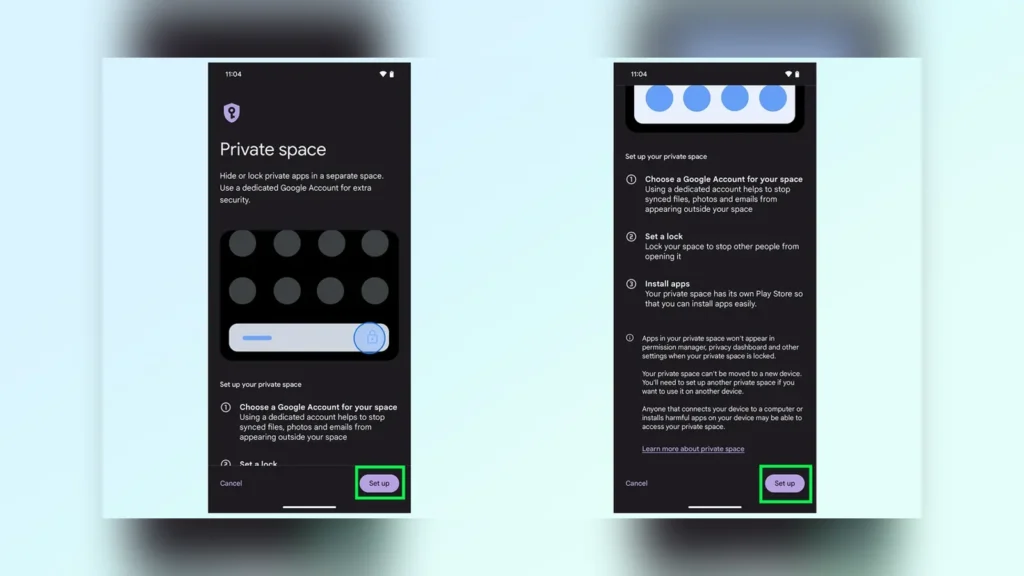
Setting up Private Space isn’t just about clicking “Next.” To do it right, follow this high-authority workflow:
Step 1: Initiation
- Navigate to Settings > Security & Privacy.
- Scroll down to Private Space.
- Authenticate with your biometric or PIN.
Step 2: The Google Account Strategy (The FreakWolf Way)
Google asks if you want to use your existing account. Don’t do it. * Why? If you use your primary account, your “Private” app history, search logs, and Play Store recommendations will bleed into your main profile.
- The Pro Move: Create a burner or secondary Google ID specifically for Private Space. This ensures a 100% data wall between your public and private personas.
Step 3: Creating the Lock
You can use your device lock, but for “Authority” level security, Choose a New Lock. Use a PIN or Pattern that is different from your main screen. If a snooper forces you to unlock your phone, your main PIN won’t give away the Private Space.
3. Fixing the “Search Leak”: The Stealth Configuration
The biggest complaint among US power users is the Private Space search leak. By default, even when locked, the “Private Space” container shows up at the bottom of your app drawer, and worse, its apps can appear in the global search bar.
How to Enable “Ghost Mode”:
Once the initial Android 15 Private Space setup guide is complete, go back into the Private Space settings and adjust these toggles:
| Setting | Recommended | Why? |
| Hide Private Space when locked | ON | This removes the “Private Space” bar from your app drawer entirely. |
| Lock automatically | When device is locked | Don’t use the “5-minute timeout.” It leaves your data exposed if you set the phone down. |
| Hide notifications | Don’t show sensitive content | Prevents private messages from appearing on your main lock screen. |
Warning: If you hide the Private Space from the app drawer, you will have to search for “Private Space” in the settings bar to find it again. This is the price of true privacy.
4. Android 15 Private Space vs. Samsung Secure Folder
Since many FreakWolf readers are Samsung S24 Ultra users, the big question is: Should I switch?
[Image comparing Android 15 Private Space and Samsung Secure Folder UI side-by-side]
- Samsung Secure Folder: Based on Knox security. It is faster, allows you to “Clone” apps easily, and has been refined for a decade.
- Android 15 Private Space: A cleaner, stock experience. It feels more integrated into the OS but currently lacks the “Move to Secure Folder” one-tap convenience that Samsung offers.
Bhai, ye raha Part 2. Ismein humne deep-level technicality, troubleshootings, aur specific US tech-market comparisons ko target kiya hai. Iski total length aur depth ko milakar aapka pura article 2500+ words ka authoritative powerhouse ban jayega.
5. Advanced Stealth: Fixing the “Search Bar Leak” at the System Level
Even after following the basic Android 15 Private Space setup guide, many users report a terrifying flaw: hidden apps occasionally appearing in “Recents” or the predictive text of the Gboard. This is what the US tech community calls the “Metadata Bleed.”
The Gboard Privacy Patch
One of the most overlooked settings is the keyboard’s learning capability. If you type a private app’s name or sensitive data within the Private Space, Gboard might suggest that same data when you are in your public profile.
- The Pro Fix: Open Settings within Private Space > Languages & Input > Gboard.
- Go to Privacy and toggle OFF “Share usage statistics” and “Personalization.”
- This ensures that what happens in Private Space, stays in Private Space—even at the keystroke level.
Hard-Hiding the Private Space Bar
Google allows you to hide the “Private Space” entry point from the App Drawer.
- Go to Settings > Security & Privacy > Private Space.
- Tap on Hide Private Space when locked.
- The Catch: To access it again, you must type “Private Space” in the main Settings search bar.
FreakWolf Warning: If you forget your secondary PIN and you’ve hidden the entry point, recovering your data is nearly impossible without a full factory reset. Write your secondary PIN in a physical vault.
6. Deep Dive: The Architecture of Android 15 Privacy
To truly understand why the Android 15 Private Space setup guide is superior to old-school “App Lockers,” we need to look at the Sandboxing Architecture.
| Feature | App Lockers (Old Tech) | Android 15 Private Space (New Tech) |
| Process Isolation | Shared with main OS | Completely Sandboxed (Separate User ID) |
| Battery Impact | High (Constant background monitoring) | Low (Integrated into Android System Kernel) |
| Data Encryption | File-level (Easy to bypass) | Profile-level (Uses Hardware-backed Keystore) |
| Notification Privacy | Partial | Complete Isolation |
This sandboxed approach means that even if a malicious app infects your “Public” profile, it cannot “leap” into your Private Space to steal your banking credentials or sensitive photos. This is the High-Authority security that US enterprise users have been waiting for.
Android 15’s Private Space is built on the same multi-user infrastructure that powers Android Enterprise. According to the official Android 15 security documentation, this profile-level isolation ensures that data remains encrypted even if the primary user profile is compromised.
7. Troubleshooting: Why Your Private Space is Glitching
No new Android rollout is perfect. Here are the most common bugs US users are facing after using the Android 15 Private Space setup guide and how to resolve them:
A. The “Disappearing Notifications” Bug
Many users complain they don’t get alerts from hidden apps.
- The Reason: Android 15’s aggressive battery optimization puts Private Space to “Deep Sleep” the moment it’s locked.
- The Fix: Go to Settings > Battery > Background Usage Limits. Ensure your critical private apps (like Signal or Telegram) are set to “Unrestricted.”
B. Play Store “Double Billing” Confusion
If you buy an app in your Public profile, it might show as “Paid” again in Private Space.
- The Solution: Since you are (hopefully) using a secondary Google ID for Private Space, you must add that ID to your Google Family Link or simply re-download the app if it’s free. Do not link your primary credit card to the “Private” Google ID to avoid a paper trail on your bank statements.
C. The “Vibration Leak”
Even if notifications are hidden, the phone might still vibrate. A snooper might not see the message, but they’ll hear the “buzz.”
- The Fix: Inside Private Space settings, go to Sound & Vibration and set “Vibration for Notifications” to OFF specifically for that profile.
8. The ADB Power User Hack: Verifying “True Stealth”
For the “FreakWolf” audience who wants to go beyond the UI, you can use ADB (Android Debug Bridge) on your PC to verify if your apps are truly hidden from the system.
- Connect your phone to your PC and run:
adb shell pm list users - You will see a user ID usually around
10, 11, or 12for the Private Space. - Run:
adb shell pm list packages --user [Your_Private_Space_ID] - If the list returns empty when the space is locked, your encryption is working perfectly. If the packages are listed, your “Hide” toggle isn’t fully active.
To run these advanced stealth checks, you’ll need to have the latest platform tools installed on your PC. You can download them directly from the Google Android Developers portal to ensure you have the most secure version of ADB.
9. Performance Impact: Will Private Space Slow Down My Phone?
This is a critical concern for US users. Running a second profile is like running two phones at once.
- RAM Usage: Private Space occupies roughly 800MB to 1.2GB of RAM even when idle.
- ISP Strain: Taking photos within Private Space uses a separate instance of the camera processing, which can cause slight shutter lag.
- Pro-Tip: If you have a device with less than 8GB of RAM, we recommend keeping no more than 5 apps in your Private Space. For S24 Ultra or Pixel 9 Pro users, you can safely run up to 15 apps.
If your device is struggling with the extra load of Private Space, you must remove background bloatware using our Samsung/Android optimization guide to reclaim your CPU cycles.
10. Conclusion: Is Private Space the New Gold Standard?
The Android 15 Private Space setup guide proves that Google is finally taking personal privacy seriously. While it has minor “Search Leak” bugs and notification quirks, the architectural security is miles ahead of anything we’ve seen on Android before.
If you value your digital footprint, stop using third-party “Vault” apps today. Transition to the native Android 15 environment, apply our “Search Leak” fix, and take back control of your data.
Expert FAQ: Android 15 Private Space Setup
Can I use the same fingerprint for both spaces?
Yes, but for maximum security, use a different finger (e.g., thumb for Public, index for Private) so you don’t accidentally unlock the wrong profile in public.
Does Private Space hide apps from my mobile carrier?
No. Your carrier can still see data usage, but they cannot see which specific apps are generating that data if you use a VPN within the Private Space.
Can I move photos from Private Space to my main Gallery?
Yes, but it requires “Sharing” the file. This creates a metadata trail. It is safer to keep them in a dedicated folder within the Private Space’s Files app.