


Let’s be brutally honest: your phone is a high-performance machine, but you’re likely treating it like a toy. If your Android battery draining fast, it’s not necessarily because the device is “old”—it’s because you are letting three specific “Silent Killers” hijack your hardware. Most users think a quick charge solves everything, but by the time you notice your phone battery dying fast all of a sudden, the chemical damage to your lithium-ion cells might already be irreversible.
In this FreakWolf authority guide, we are exposing the hidden background loops and the “Update Bug” myths. We will identify the 3 Silent Killers that are making your Android battery draining fast and show you how to stop the drain before you’re forced into an early, expensive hardware replacement.
Guide at a Glance: The 3 Silent Killers
- Killer #1: The 5G Signal Loop. How weak towers in the US fry your battery.
- Killer #2: The Rogue Wakelock. Why your CPU never actually goes to sleep.
- Killer #3: The Legacy Cache Conflict. Why Android 15 battery drain after update is real.
Key Takeaways for Power Users
- The 5G Tax: Patchy 5G signals are the #1 cause of sudden heat and drain in suburban US areas.
- Background Hijack: Most apps draining battery in background Android aren’t even visible in your recent apps tray.
- Software Decay: A simple OS update can trigger “System Indexing” loops that last for days.
Pro Performance Note: Excessive battery drain isn’t just an annoyance; it’s a hardware killer. Every time your phone heats up due to a drain loop, you are losing permanent capacity. Before you continue, you must Check Your Android Battery Health to see if your hardware is already too far gone.
1. Silent Killer #1: The 5G Signal Struggle (The Sudden Death)
If your phone battery dying fast all of a sudden, the culprit is likely in your status bar. In the US, 5G coverage is still patchy in many regions. When your device sees a weak 5G signal, it triggers a “Power Boost” to the modem to maintain the connection.
This creates a massive thermal load. If your Android battery draining fast and the phone feels warm near the camera module, your modem is fighting a losing battle. Switching to LTE in weak signal areas can instantly solve the Android battery drain overnight fix for users in rural or suburban zones.
2. Silent Killer #2: Rogue Wakelocks (Why Your CPU Won’t Sleep)
The second reason your Android battery draining fast is a “Wakelock.” Normally, when you turn off your screen, the CPU enters “Deep Sleep.” However, certain apps draining battery in background Android (like carrier-locked diagnostic tools or social media trackers) prevent this.
It’s like leaving your car engine running all night in the garage. By the time you wake up, the tank is empty. If you lose more than 3% battery while sleeping, you need an Android battery drain overnight fix that starts with restricting background activity for these rogue apps.
The Science Table: Idle Drain vs. Network Stress
| Feature/Setting | Idle Drain (8 Hours) | Stress Level | US User Impact |
| Wi-Fi Only (Airplane Mode) | 1-2% | Zero | Optimal for longevity |
| LTE / 4G (Steady Signal) | 3-5% | Low | Standard US usage |
| 5G (Patchy/Weak Signal) | 12-18% | High | Common in Suburban Areas |
| Bluetooth + GPS Active | 8-10% | Moderate | High drain in major cities |
According to official Android Developer Documentation, background network requests and unscheduled wakelocks are the leading cause of “unaccounted” battery loss.
3. Silent Killer #3: The Android 15 Legacy Cache Conflict
It happens every year. You download the latest OS, and suddenly, your Android battery draining fast. This is the third silent killer: The Cache Loop.
When you update to Android 15, the system undergoes “re-indexing.” It scans every file and app to optimize them. However, if old app data (Legacy Cache) conflicts with the new Runtime, the system gets stuck in a “Processing Loop.” This Android 15 battery drain after update isn’t a feature—it’s a bug caused by old data fighting the new OS.
Hunting the Apps Draining Battery in Background Android
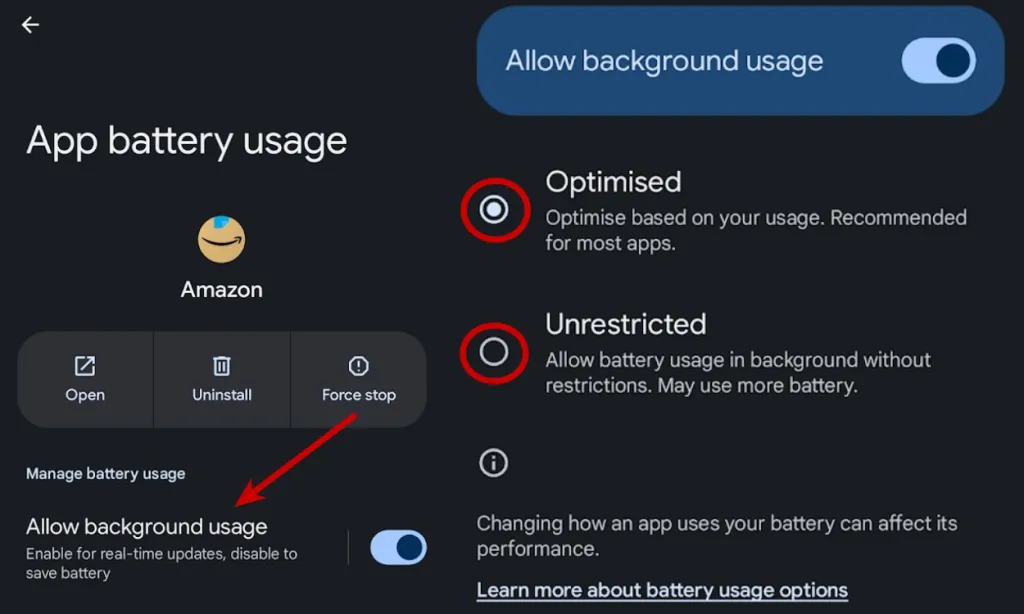
To stop these killers, you must identify which apps draining battery in background Android are the primary offenders.
- Social Media: Meta apps (Facebook, Instagram) are notorious for “Background Pings.”
- Carrier Bloatware: Verizon and T-Mobile apps often run diagnostic scans that trigger the 5G modem.
To fix this, go to Settings > Apps > [App Name] > Battery and switch it to “Restricted.” This is the only way to truly stop the bleed without deleting the app.
The Regional Factor: Why US Users Suffer More
If you live in a high-heat region like Arizona or a rural area with weak towers like Montana, your Android battery draining fast issue is often environmental.
- The Signal Search: 1 bar of 5G consumes 3x more power than 4 bars of LTE.
- Thermal Throttling: In the US summer, your battery chemistry becomes unstable. The energy cost of keeping the device cool often leads to a faster drain.
The “Wakelock” Conspiracy: Why Your CPU Won’t Sleep
The single biggest reason for an Android battery draining fast while the phone is idle is a phenomenon called “Wakelocks.” In the US, carrier-specific diagnostic apps are notorious for this. A Wakelock is a software command that prevents your processor from entering a “Deep Sleep” state to finish a background task—like syncing an ad or scanning your location.
If you go to your battery settings and see that the “Awake” time is almost identical to your total uptime, but your “Screen On Time” is only 2 hours, you have a rogue Wakelock. To fix this without rooting your device, you must identify the app and revoke its “Allow Background Activity” permission. This is the ultimate Android battery drain overnight fix for high-end flagship users.
Fixing the Android 15 Battery Drain After Update (The Pro Protocol)
If you are experiencing Android 15 battery drain after update, and a simple restart didn’t work, you need to clear the System Image Cache. When a new OS version is installed, old compiled code (Dalvik Cache) sometimes conflicts with the new Runtime, creating a heat-generating loop.
The FreakWolf “Fresh Start” Protocol:
- Navigate to Settings > System > Reset Options.
- Select Reset App Preferences. (This doesn’t delete your data, but it resets the background restriction “handshake” between the apps and the new OS).
- This move is mandatory for anyone noticing their phone battery dying fast all of a sudden after the latest January 2026 security patch.
The Silent Drain: Private Space & Dual Profiles
One of the coolest features of the latest update is the ability to isolate sensitive apps. However, many US power users don’t realize that a secondary profile runs a completely separate instance of Google Play Services. Running two instances of GMS is like running two separate engines in one car; it will double your background consumption.
FreakWolf Security Note: While protecting your data is vital, an unoptimized secondary profile is a leading cause of apps draining battery in background Android. If you haven’t configured the sync settings correctly, your Android 15 Private Space Setup could be the very reason you are tethered to a wall charger. Make sure to “Lock” the space when not in use to freeze its background CPU cycles.
Advanced Calibration: The “Voltage Sync” Protocol
Sometimes the issue isn’t the lithium-ion chemistry—it’s the Fuel Gauge IC (the chip that reports the percentage). If your phone jumps from 15% to 5% in seconds, your software and hardware are out of sync. This often leads to unnecessary Android battery drain overnight fix searches because the percentage drops while you sleep due to a reporting error.
Technical Calibration Steps:
- Drain your phone until it shuts down automatically (0%).
- Charge it to 100% while it is powered off.
- Once it hits 100%, leave it on the charger for an extra 30 minutes to “Top-Off” the cells.
- This forces the Android Kernel to reset its
batterystats.binfile, giving you an accurate reading of your remaining juice.
The 5G vs. LTE Battle: A US Regional Analysis
In many parts of the US—from the suburbs of Illinois to the rural stretches of Texas—5G signals are “patchy.”1 Your phone’s modem uses a technique called “Power Boosting” to stay connected to a weak 5G tower. This can consume up to 3x more power than a stable LTE connection.
If your Android battery draining fast and the phone feels warm near the camera module (where the antennas are located), switch your “Preferred Network Type” to LTE. You’ll lose some download speed, but you’ll gain 2-3 hours of extra battery life—a fair trade for anyone working in a building with poor reception.
Technical Comparison: Software vs. Hardware Drain
| Symptom | Probable Cause | Fix Complexity | FreakWolf Rating |
| Phone warm in pocket | Rogue Background App / Wakelock | Easy | 1/10 |
| Overnight drop > 10% | 5G Signal Searching / Sync Loop | Moderate | 5/10 |
| Battery drops 2% per minute | Chemical Degradation (Voltage Sag) | High (Hardware) | 9/10 |
| Sudden shutdown at 15% | Fuel Gauge De-calibration | Moderate | 4/10 |
For a deeper dive into why lithium-ion chemistry fails under stress, check out Battery University’s Industry Report on Cell Wear. It’s the industry gold standard for understanding why “draining fast” is often a chemical cry for help.

ADB Hacks: Killing the Unkillable “Silent Killers”
For the 1% of users who want absolute control, using ADB (Android Debug Bridge) is the only way to stop certain apps draining battery in background Android.
The Power Command:
Use the command adb shell cmd package compile -m speed-profile -a to force the system to optimize all apps for your specific hardware. This reduces the CPU load during app launches and significantly slows down the drain. This is the “Nuclear Option” for fixing an Android battery draining fast issue without waiting for the next OTA update.
Frequently Asked Questions:
Will clearing System Data fix my battery drain?
Yes. Overloaded cache files force the media indexer to run constantly in the background. Clearing them reduces “System Noise.”
Why did my phone battery dying fast all of a sudden after a carrier update?
Carriers often bundle “Diagnostic Tools” (Bloatware) in their patches. Check your “Usage Access” settings and revoke permission for any app with your carrier’s name.
Does using a Dark Mode actually help?
Only on OLED/AMOLED screens. It can save up to 15% battery in a day if you are a heavy “Screen On” user.