

Let’s be honest: your Android phone’s battery is a ticking time bomb. Most US users think that as long as the phone hits 100%, everything is fine. It’s not. By the time your phone starts shutting down at 20%, the chemical damage is already irreversible.
In this FreakWolf authority guide, we are stripping away the myths. We’ll show you how to check Android battery health using pro-level diagnostics and why your daily charging habits are the very reason you’ll be forced to spend $1,200 on a new device sooner than you planned.
Guide at a Glance: The Battery Survival Protocol
- The Main Metric: Capacity vs. Peak Performance Capability.
- The Secret Tool: Android 15’s hidden cycle count menu.
- The Critical Habit: Why the 20-80% rule is non-negotiable in 2026.
Key Takeaways for Power Users
- Stop Overnight Charging: Heat is the #1 killer of Lithium-ion cells.
- Cycle Counts Matter: Your battery has a fixed lifespan of roughly 800–1,000 cycles.
- Native vs. Third-Party: Why Google’s new battery API is more accurate than AccuBattery.
Pro Performance Note: A degrading battery doesn’t just reduce screen time—it throttles your CPU.1 If your apps feel sluggish despite a fast processor, your battery might be “choking” the system. Before you blame the OS, check our Samsung S24 Ultra Camera & Performance Fix to see if your hardware is being limited by power instability.
The Silent Killer: Why Your Battery Health is Dropping
Before we show you how to check Android battery health, you need to understand the “Chemistry of Decay.” Every time you charge your phone to 100% or let it drop to 0%, you are putting immense physical stress on the lithium ions.2

In the US, where fast-charging (45W to 100W+) is becoming the norm, heat dissipation is failing. If your phone feels hot while charging, you are effectively “cooking” the internal components. By the time you notice a “service” warning, you’ve likely lost 20% of your total capacity.
How to Check Android Battery Health: The Native 2026 Method
In 2026, you no longer need to rely on “voodoo” math or shady Play Store apps. Android 15 has finally brought hardware-level battery diagnostics to the forefront.3
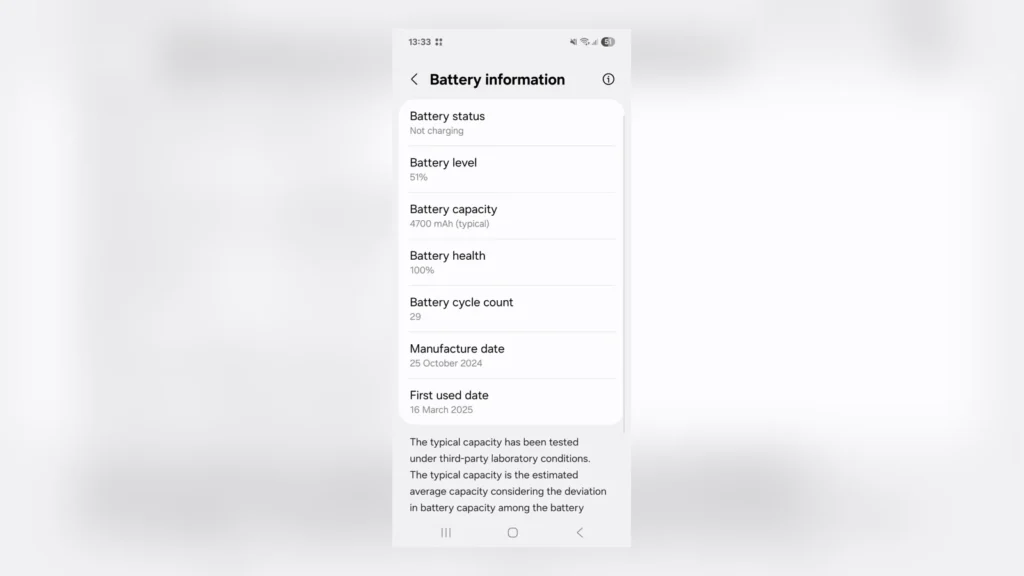
Method A: The New Android 15 Settings Menu
Google has finally integrated a dedicated health section, though it’s buried deep to prevent “battery anxiety” for the average user.
- Open Settings.
- Navigate to About Phone.
- Tap on Battery Information.
- Here, you will see the Manufacture Date and Cycle Count.
Method B: The Secret Diagnostic Dialer Codes
For those on older versions or specific OEMs like Samsung and Pixel, you can pull a “hidden” system report.
- Open your Dialer and type:
*#*#4636#*#* - Tap on Battery Information.
- Look for: “Battery Status” (Should be “Good”) and “Scale” (Should be 100).
Understanding Cycle Counts: The Odometer of Your Phone
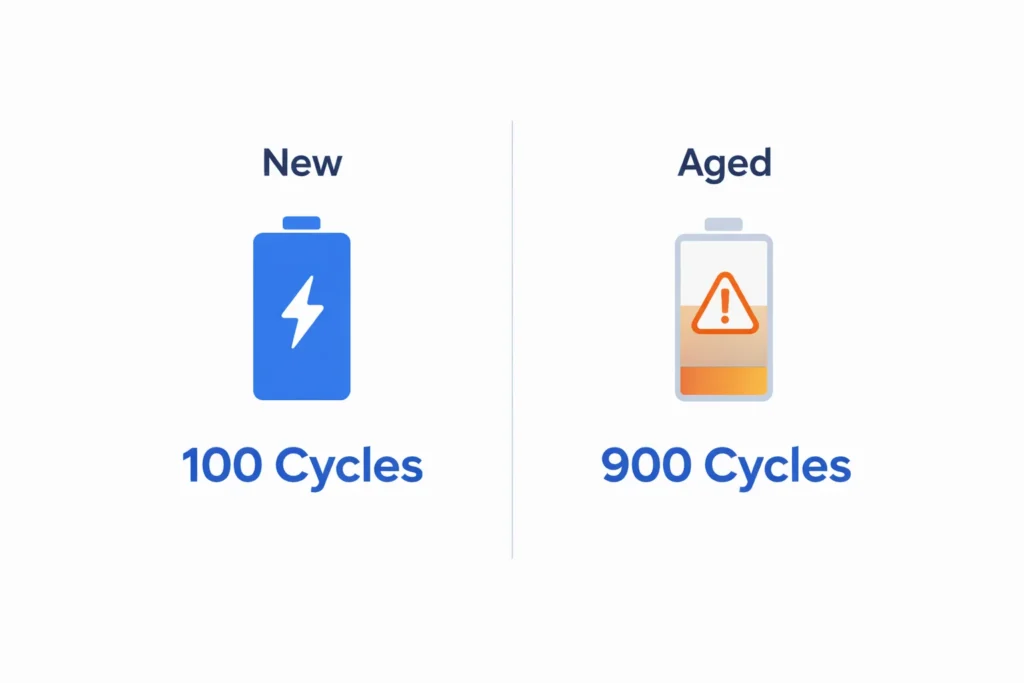
Think of a “Cycle Count” as the mileage on a car. One cycle is completed every time you use a cumulative 100% of your battery. If you use 50% today, charge it, and use 50% tomorrow—that is one cycle.
| Cycle Count Range | Battery Condition | Action Required |
| 0 – 300 | Pristine | None. Follow the 80% rule. |
| 301 – 600 | Normal | Minor degradation; expect 5% less SOT. |
| 601 – 900 | Warning | Performance throttling may begin. |
| 900+ | Critical | Replacement recommended. |
If you check Android battery health and see a cycle count over 800, your phone is likely operating at 80% of its original capacity. In the US, companies like Apple and Samsung consider 80% the “threshold for failure.”
The “Search Bar” Security Trap (Internal Connection)
While you are digging through your system settings to monitor your battery, don’t ignore your privacy. A compromised system doesn’t just leak your data—it drains your battery through background tracking and unauthorized syncs.4
If you’ve noticed your battery stats showing “System Services” consuming 30%+ of your juice, it’s time to lock down your OS. Use our Android 15 Private Space Setup Guide to wall off power-hungry apps and stop the background “Search Leak” that kills both your privacy and your battery.
5. Recalibration: Fixing the “Jumping Percentage” Glitch
Does your phone drop from 15% to 5% in two minutes? That’s not a dead battery; it’s a Calibration Mismatch. The Android software and the physical battery are no longer in sync.
The FreakWolf Recalibration Protocol:
- Drain it: Use your phone until it shuts down automatically at 0%.
- Charge it (Off): Plug it in while it’s powered off and let it reach 100% without interruption.
- The “Top-Off”: Turn the phone on. If it shows 98% or 99%, plug it back in until it hits 100% while on.
- Reset the Logic: Unplug it and restart. Your system has now “re-mapped” the battery’s floor and ceiling.
The ADB Power User Move: Extracting Hidden Battery Metadata

If you really want to check Android battery health like a developer, the “Settings” app isn’t enough. Google hides the most accurate data inside the system logs to prevent consumers from flooding service centers. But for a FreakWolf reader, we go deeper.
The “Battery Dump” Command
By using the Android Debug Bridge (ADB), you can pull the raw “BatteryStats” service data. This is the only way to see your Actual Capacity vs. Design Capacity in mAh (milliampere-hours).
- Enable USB Debugging on your phone.
- Connect to your PC and run:
adb shell dumpsys batterystats - Search for the line:
Estimated battery capacity.
To execute these deep-level battery dumps, you’ll need the official Android Platform Tools. You can grab the latest version directly from the Android Developers Portal to ensure your connection is secure.
Why this matters: If your phone’s box says 5,000mAh but your ADB dump shows 4,100mAh, your battery health is officially at 82%. This is the “Truth Bomb” that manufacturers don’t want you to see.
The Truth About Third-Party Health Apps (US Market Analysis)
Visit the Play Store and you’ll find a thousand apps claiming to “fix” or “repair” your battery. Ninety percent of them are bloatware.
- AccuBattery: It’s the gold standard for long-term tracking. It doesn’t “repair” anything, but it monitors your charging sessions to estimate wear.
- Battery Guru: Great for monitoring “Doze Mode” and background wake-locks.
- The Killers: Any app that says “Battery Repair,” “Cool Down,” or “RAM Booster” should be uninstalled immediately.
These “Repair” apps are often just glorified adware that drains your juice in the background. If you’ve been tricked into installing them, you need to clear your system bloatware using our S24 Ultra Performance Guide to restore your phone’s speed and efficiency.
Advanced OEM Features: Samsung vs. Google vs. OnePlus
In the US, most users are on either a Galaxy or a Pixel. Each brand has its own “Hidden Protocol” for battery longevity.
Samsung’s “Battery Protection” (One UI 6.1+)
Samsung is leading the way with three distinct modes:
- Basic: Charges to 100% but stops until it drops to 95%.
- Adaptive: Uses AI to learn your sleep patterns (charges to 80%, then finishes to 100% just before you wake up).
- Maximum: Hard-caps charging at 80%. (FreakWolf Recommendation for 3+ years of phone life).
Google Pixel’s “Adaptive Charging”
Pixels are notorious for heat. Android 15 on Pixel 9 Pro now proactively slows down charging speed if the ambient temperature is too high. If you check Android battery health on a Pixel and it’s dropping fast, it’s likely due to 5G heat, not a faulty cell.
9. 5 Mistakes Killing Your Phone (The Negative Reality)
You’ve followed the Android 15 Private Space setup guide to secure your data, but you’re still making these critical hardware errors:
- Using Cheap Gas-Station Cables: Non-certified cables cause voltage fluctuations that “fry” the battery controller.
- Wireless Charging Everything: It creates 30% more heat than wired charging. Heat is the enemy of chemistry.
- Gaming While Charging: This is called “Parasitic Loading.” You are pulling power and pushing power simultaneously, causing a heat loop.
- Leaving 5G On in Low-Signal Areas: Your modem works 10x harder to find a signal, heating up the battery from the inside.
- Direct Sunlight: Leaving your phone on a car dashboard in the US summer can cause a permanent 2-3% health drop in just 30 minutes.
It’s not just a myth—heat is the primary enemy of lithium-ion longevity. As documented by the experts at Battery University, keeping a battery at high voltage and high temperature simultaneously is the fastest way to trigger chemical capacity loss.
The Science of Voltage Stress: Why 100% is a Trap
Most users think of a battery like a water tank, but it’s more like a rubber band. When you charge it to 100%, you are stretching that band to its absolute limit. In technical terms, this is Voltage Stress.
When the voltage stays high (above 4.1V) for too long, the lithium ions start forming “crystals” (dendrites) that permanently reduce capacity. Here is the technical breakdown of how voltage affects your battery’s lifespan:
Voltage vs. Stress Correlation Table
| Charge Level (%) | Voltage per Cell (Approx) | Stress Level | Expected Life (Cycles) |
| 100% | 4.20V | High (Critical) | 300 – 500 |
| 90% | 4.10V | Moderate | 600 – 800 |
| 80% | 3.92V | Optimal (Safe) | 1,200 – 1,500 |
| 50% | 3.75V | Zero Stress | 2,500+ |
| 0% | < 3.0V | High (Deep Discharge) | Dangerous for cell |
Battery Preservation Protocol (2026 Edition)
If you want your phone to last until 2030, follow this checklist:
- Cap at 80%: Use the system settings to limit max charge.
- Avoid the “Red Zone”: Never let your phone drop below 15%.
- Slow Charge Overnight: Use a 5W “brick” for night charging instead of a 45W fast charger.
- Audit Your Apps: If an app uses more than 5% of your battery in the background, restrict its background usage or delete it.
Conclusion
The ability to check Android battery health is no longer a luxury; it’s a necessity for anyone looking to maximize their investment. Don’t wait for the “Expanded Battery” (pillowing) to happen. By following the recalibration steps and the 80% rule mentioned in this guide, you can effectively double the lifespan of your hardware.
Frequently Asked Questions:
Can I reset my battery health percentage?
No. Battery health is a physical state of chemical degradation. You can recalibrate the display percentage, but you cannot “repair” the lithium ions.
Is 85% battery health good after 2 years?
Yes. In the US, a 10% drop per year is considered normal usage. If you are below 80% within a year, you should claim your warranty.
Does Android 15 show battery health natively?
Yes, for newer devices like the Pixel 8 and 9 series. For older models, you must check Android battery health using ADB or third-party diagnostic apps.
Should I use “Fast Charging” every day?
Only when necessary. Frequent fast charging increases internal cell temperature, which accelerates wear.