

Guide At A Glance
| Metric | Details |
| Difficulty Level | Easy / Medium |
| Time Required | 10–15 Minutes |
| Tools Needed | PC (Windows/Mac) OR Just Phone (Wi-Fi) |
| Safety Status | Safe (Warranty Intact / Knox 0x0) |
| Supported Devices | Galaxy S24, S23, Z Fold 5, A54 (One UI 5.0+) |
Key Takeaways
- No Root Required: You do not need to root your device or void your warranty to remove pre-installed apps.
- Performance Boost: Removing background processes like
com.facebook.servicescan improve battery standby time by 10-15%. - Carrier Freedom: This guide works specifically for “Locked” models from Verizon, T-Mobile, and AT&T.
- Reversible: If you delete something important, you can restore it instantly using the tools below.
The Problem: You Paid $1,200 for Ads?
Let’s be brutally honest. You just bought a premium Samsung Galaxy S24 Ultra. It features a titanium frame, a Snapdragon 8 Gen 3 processor, and a stunning display.
But the moment you turn it on, what do you see?
Candy Crush. Facebook. LinkedIn. Four different apps for “Notes.”
In the tech industry, we call this Bloatware. But let’s call it what it really is: Adware. Carriers like Verizon and T-Mobile get paid millions to force-install these apps on your device. Samsung is equally guilty, pushing their own duplicate ecosystem (Bixby, AR Zone, Samsung Free) that you likely never use.
Why does this matter?
It’s not just about clutter. These apps run silently in the background. They:
- Eat your RAM (Making your new phone slower).
- Drain your Battery (Constantly pinging servers).
- Steal your Data (Tracking your location and usage habits).
Today, we are taking control back. This guide will show you how to surgically remove this trash without rooting your phone.
⚠️ Important Note: This process is safe, but removing critical system apps can cause errors. Please follow our “Safe List” below carefully. We recommend taking a quick data backup just to be safe.
Phase 1: The Preparation (Enable USB Debugging)
To let our tools talk to your phone, we need to unlock the “Developer Options.” This is the standard gateway for any advanced Android modification.
Step 1: Unhide Developer Menu
- Open Settings > About Phone.
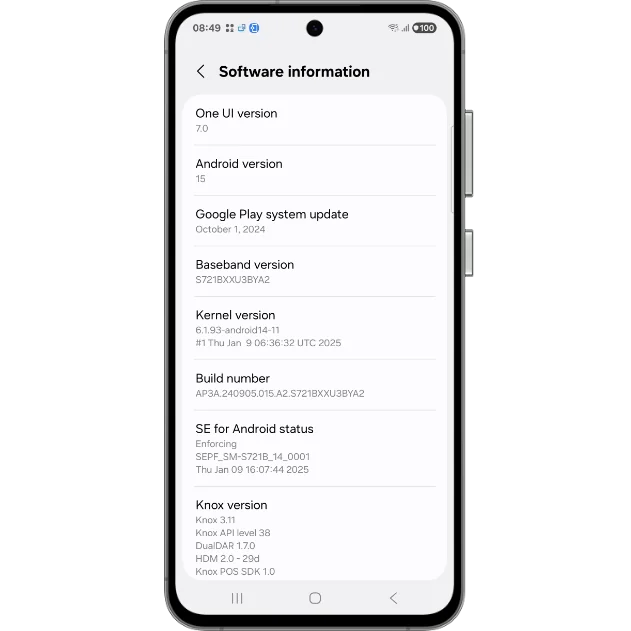
- Tap on Software Information.
- Find Build Number and tap it 7 times rapidly.
- Enter your PIN when prompted. You will see a toast message: “Developer mode has been enabled.”
Step 2: Enable The Bridge
- Go back to the main Settings menu.
- Scroll to the very bottom and open Developer Options.
- Scroll down to the “Debugging” section.
- Toggle USB Debugging to ON.
- Tap OK on the warning prompt.
Method 1: The “Power User” Way (ADB App Control)
Best for: Windows Users who want a visual dashboard.
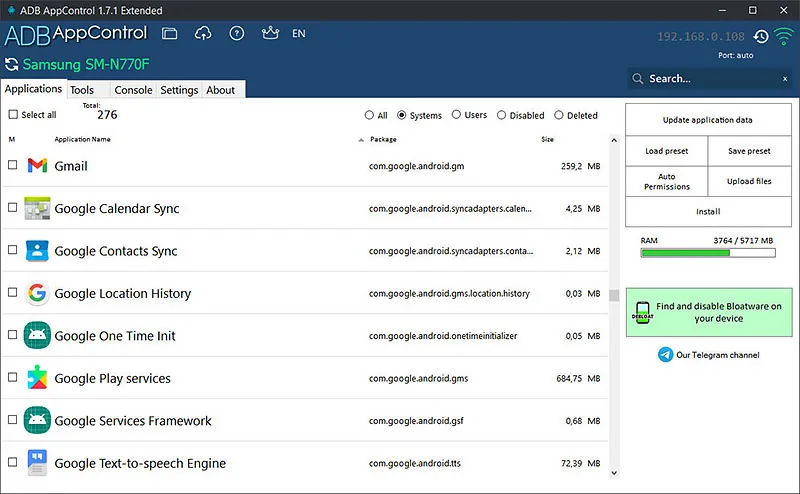
If you have a Windows PC/Laptop, this is the safest and easiest method. We will use a tool called ADB App Control (developed by Cyber.Cat). It provides a clean, visual interface—no scary command lines required.
1. Get the Tool
Download ADB App Control (Free Version) from the official website or XDA Developers. Install it on your PC.
Note for Mac Users: This specific tool is Windows-only. Mac users should scroll down to “Method 2” (Shizuku) or use terminal commands.
2. Connect Your Device
- Plug your Galaxy phone into your PC using a quality USB Data Cable.
- Check your phone screen. A popup will appear: “Allow USB Debugging?”
- Critical Step: Check the box “Always allow from this computer” and tap Allow.
- Open the ADB App Control software on your PC.
3. Install the Bridge App
The tool will ask to install a helper app called “ACBridge” on your phone.
- Click Yes. This helps the software display the real names of apps (e.g., “Samsung Calendar”) instead of confusing code names (e.g.,
com.android.calendar).
4. Identifying the Trash
Once loaded, you will see a list of every single application on your device. The tool categorizes them nicely:
- User: Apps you installed (Netflix, Instagram).
- System: The core OS apps (Be careful here).
How to Filter:
Use the search bar at the top right to find specific bloatware. For example, type Facebook. You will likely see 3-4 hidden system apps related to Facebook even if you uninstalled the main app!
5. The Extermination (Uninstall Process)
- Select the apps you want to remove (Check our Golden List below for package names).
- In the bottom right dropdown, select “Uninstall”.
- (FreakWolf Tip: If you are nervous, select “Disable” first. If the phone works fine for a week, you can Uninstall later.)
- Click the red “Do It!” button.
- The tool will ask if you want to backup the APKs. Select YES. (This saves a copy on your PC in case you need to restore them).
Result: The apps will instantly vanish from your app drawer and stop running in the background.
Compatibility Check: Will This Work on My Phone?
This guide is updated for 2026 and works on almost all Samsung devices running One UI 5.0, 6.0, and 6.1.
| Series | Supported Models |
| Galaxy S Series | S24 Ultra, S24+, S24, S23 Series, S22 Series, S21 FE |
| Galaxy Z Series | Z Fold 5, Z Flip 5, Z Fold 4, Z Flip 4 |
| Galaxy A Series | A54, A34, A53, A73 (and most M series) |
| Tablets | Tab S9 Ultra, Tab S9, Tab S8 Series |
Method 2: The “No PC” Method (Shizuku + Canta)
Best for: Users who want to debloat directly on the phone without cables.
If you don’t have a Windows laptop handy, or you just want to feel like a hacker, this method is for you. We will use a powerful open-source tool called Shizuku.
How it works: Shizuku uses Android’s “Wireless Debugging” feature to give itself special permissions. Then, we use an app called Canta to perform the uninstallations.
Step 1: The Setup
- Download Shizuku from the Google Play Store.
- Download Canta (It’s not on Play Store; search “Canta F-Droid” or get the APK from GitHub).
- Important: Make sure your phone is connected to Wi-Fi. (Wireless debugging requires Wi-Fi).
Step 2: Activating Shizuku
- Open Shizuku. It will say “Shizuku is not running.”
- Tap on Pairing (under “Start via Wireless Debugging”).
- Tap Developer Options. Scroll down to “Wireless Debugging” and turn it ON.
- Tap on the text “Wireless Debugging” (not the toggle) to enter the sub-menu.
- Tap “Pair device with pairing code.”
- You will see a 6-digit Wi-Fi pairing code.
- A Shizuku notification will appear asking for the code. Enter the 6 digits there.
- Go back to the Shizuku app main screen and tap Start.
- You should now see: “Shizuku is running.”
Step 3: Cleaning with Canta
- Open the Canta app.
- It will ask for permission to use Shizuku. Tap Allow always.
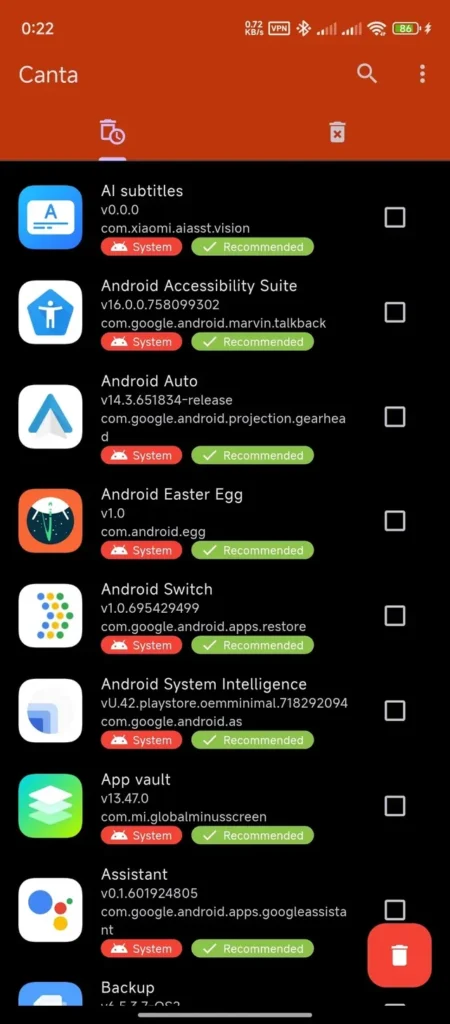
- Canta will load all your apps. The best part? It categorizes them:
- Recommended: Safe to delete (e.g., Facebook bloat, AR Zone).
- Advanced: Proceed with caution.
- Expert: Do not touch unless you know exactly what you are doing.
- Simply select the trash apps and hit the Trash Can icon (Delete).
The “Golden” De-bloat List: What is Safe to Remove?
Here is the complete database of bloatware packages found on Samsung One UI 6.0/6.1. Use the Search function in ADB App Control or Canta to find these quickly.
Category 1: Social Media & Spyware (High Battery Drain)
These apps run in the background constantly. Remove them first.
| App Name | Package Name | Why Remove? |
| Facebook App | com.facebook.katana | Major battery drainer. Use the web version instead. |
| Facebook System | com.facebook.system | Background installer service for Meta apps. |
| Facebook Manager | com.facebook.appmanager | Auto-updates Facebook apps without permission. |
| Facebook Services | com.facebook.services | Deep system integration for Meta tracking. |
com.linkedin.android | Pre-installed bloat. Safe to remove. |
Category 2: Samsung “Junk” Apps
Safe to remove if you don’t use Samsung’s specific ecosystem features.
| App Name | Package Name | Description / Risk |
| AR Zone | com.samsung.android.arzone | Useless AR stickers feature. Safe. |
| AR Emoji | com.samsung.android.aremoji | Creates 3D avatars. Safe. |
| Samsung Tips | com.samsung.android.app.tips | Annoying pop-ups teaching you how to use the phone. Safe. |
| Samsung Kids | com.samsung.android.kidsinstaller | Child mode installer. Safe. |
| Samsung Free | com.samsung.android.app.spage | The news page on the left of home screen. Safe. |
| Game Launcher | com.samsung.android.game.gamehome | Remove if you don’t play games. Safe. |
| Samsung Internet | com.sec.android.app.sbrowser | Remove only if you use Chrome/Firefox. |
| Bixby Agent | com.samsung.android.bixby.agent | Remove if you use Google Assistant instead. |
Category 3: Microsoft & Carrier Bloat (US Variants)
Pre-installed ads/apps from Verizon, T-Mobile, and Microsoft.
| App Name | Package Name | Why Remove? |
| OneDrive | com.microsoft.skydrive | Remove if you use Google Photos/Drive. |
| Your Phone | com.microsoft.appmanager | Windows integration app. Safe to remove. |
| Verizon Login | com.vzw.hss.myverizon | Carrier account app (Verizon). |
| T-Mobile App | com.tmobile.pr.mytmobile | Carrier account app (T-Mobile). |
| App Selector | com.tmobile.pr.adapt | CRITICAL: This installs random games automatically. Delete it! |
How to Restore (If You Mess Up)
Did you accidentally delete the Calculator or Samsung Keyboard? Don’t panic. You didn’t actually “delete” the file from the read-only partition; you just uninstalled it for the user.
- Open ADB App Control on your PC again (or Canta on mobile).
- Go to the “Uninstalled” tab.
- Find the app you regret deleting.
- Check the box and click “Restore”.
- It will instantly reappear on your phone.
Final Thoughts: Take Ownership
Your smartphone is the most personal device you own. You shouldn’t have to tolerate ads in your Weather app or unwanted games from your carrier.
By following this guide, you have stripped away the corporate “noise” and reclaimed the performance you paid for.
Found a new bloatware package? Drop a comment below and let the FreakWolf pack know!
Frequently Asked Questions (FAQ)
Will debloating void my Samsung Warranty?
No, We are not Rooting the device or flashing a custom ROM. We are simply uninstalling apps for the current user (user 0). Your Knox counter remains 0x0 (Safe).
Will I still get OTA Updates (One UI 7.0/Android 15)?
Yes, Removing bloatware does not block official software updates from Samsung or your carrier.
Why does the storage space not increase much?
Because the APK files remain in the system partition (which is read-only). However, you free up User Data and, more importantly, RAM and CPU cycles, which improves battery life and speed.